
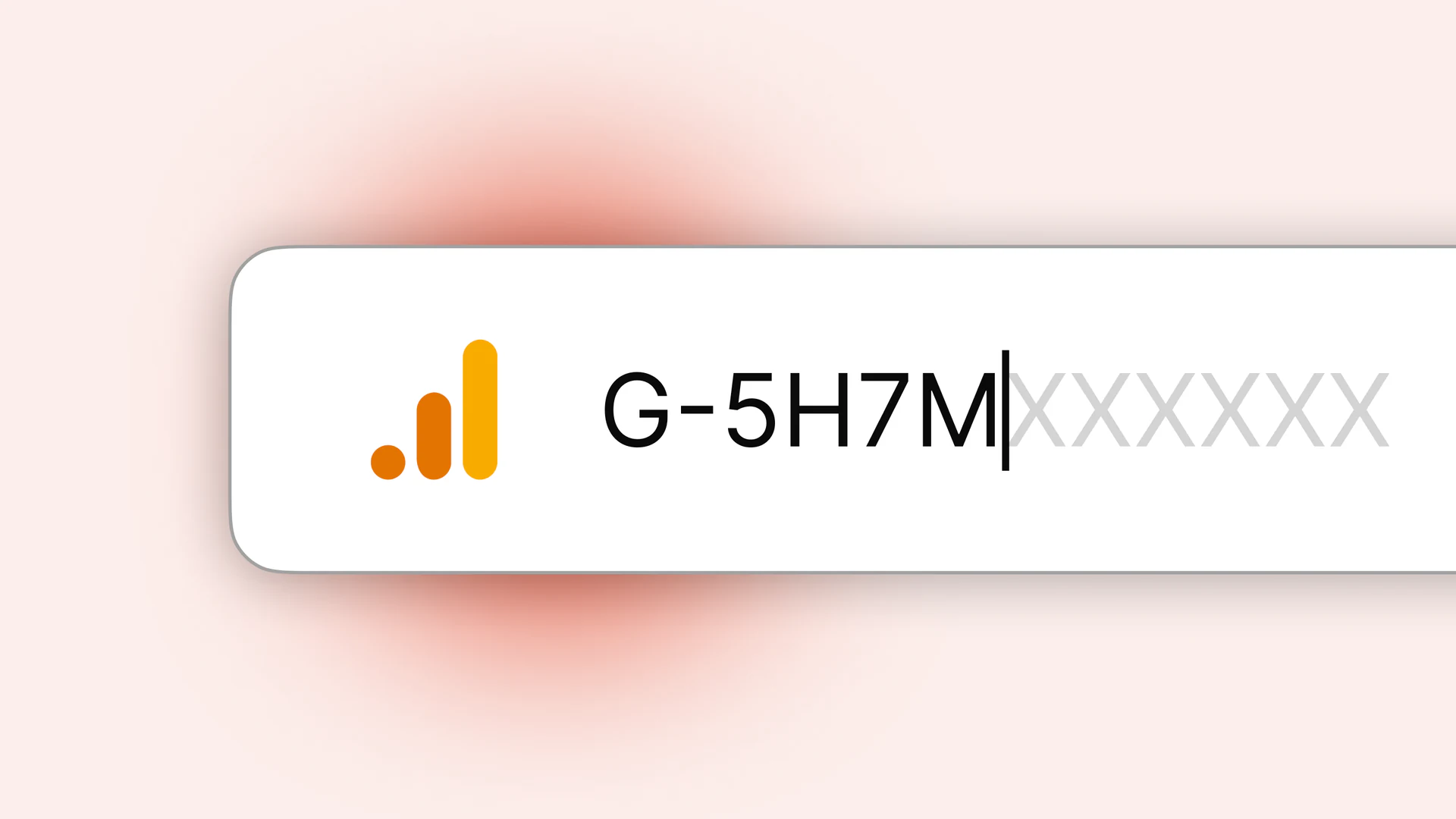
We've added Google Analytics 4 integration to Coralbeat. Now you can send customer activity data directly to your own GA4 dashboard and see how people interact with your Coralbeat experience.
How It Works
Enter your Google Analytics Measurement ID in your Coralbeat settings to automatically start sending customer activity data to your Google Analytics dashboard. Once configured, you will have visibility into basic engagement events tracked in your Coralbeat experience.
To disable tracking anytime, simply remove the Measurement ID.
Getting Your GA4 Measurement ID
Before you can connect Coralbeat, you'll need a Google Analytics 4 Measurement ID. Here's how to get it:
Step 1: Access Google Analytics
Go to analytics.google.com and sign in with your Google account.
Step 2: Set Up Your GA4 Property
If you don't have a GA4 property yet, create one first. Follow Google's guide to set up your property.
Step 3: Get Your Measurement ID
-
In the top-left account/property picker, confirm you're in the correct Account and Property for this customer experience
-
Open Admin → Data streams
-
Select your Web data stream
-
Copy your Measurement ID (starts with
G-)
Configuring Coralbeat
Once you have your Measurement ID:
- Go to Settings → Analytics in your Admin Dashboard
- Enter your GA4 Measurement ID in the field
- Click Save
That's it. Coralbeat will now send customer activity data to your Google Analytics dashboard.
Viewing Your Data
After connecting your GA4 Measurement ID, data will start flowing to your Google Analytics dashboard. Keep in mind that it may take some time for data to appear in your reports. Check your GA4 Realtime reports first to see activity as it happens, then review standard reports after Google has processed the data.
For detailed information about data processing times and reporting, see Google's Analytics documentation.
Privacy Note
If your customer experience serves users in the EU or other regions with data privacy regulations, make sure to update your privacy policy to mention Google Analytics usage and configure appropriate consent mechanisms as required by law.
Disabling Tracking
To turn off GA4 tracking:
- Go to Settings → Analytics in your Admin Dashboard
- Remove the Measurement ID from the field
- Click Save
Tracking stops immediately. Your existing data in GA4 remains accessible.